Product designer
Keep the product silhouette while testing new lighting, surfaces, and campaign settings.
More concept directions without rebuilding the product reference.
krea 2 image to-imageImage transformation
Krea 2 i2i compares an input image with a revised result so you can direct changes while preserving the subject, framing, and visual intent.
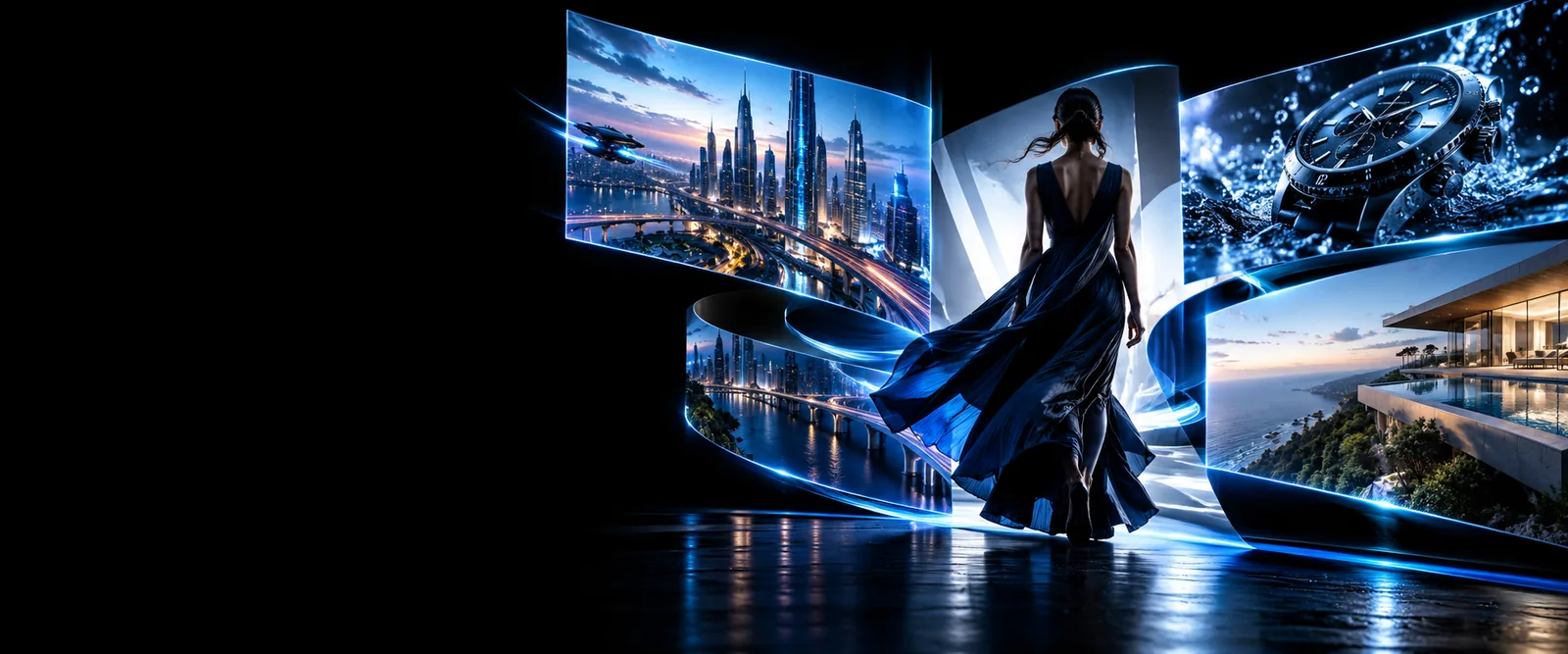
A/B comparison
Use the same subject and framing on both sides of the comparison. The useful question is not whether the result looks different, but which structure stayed intact.
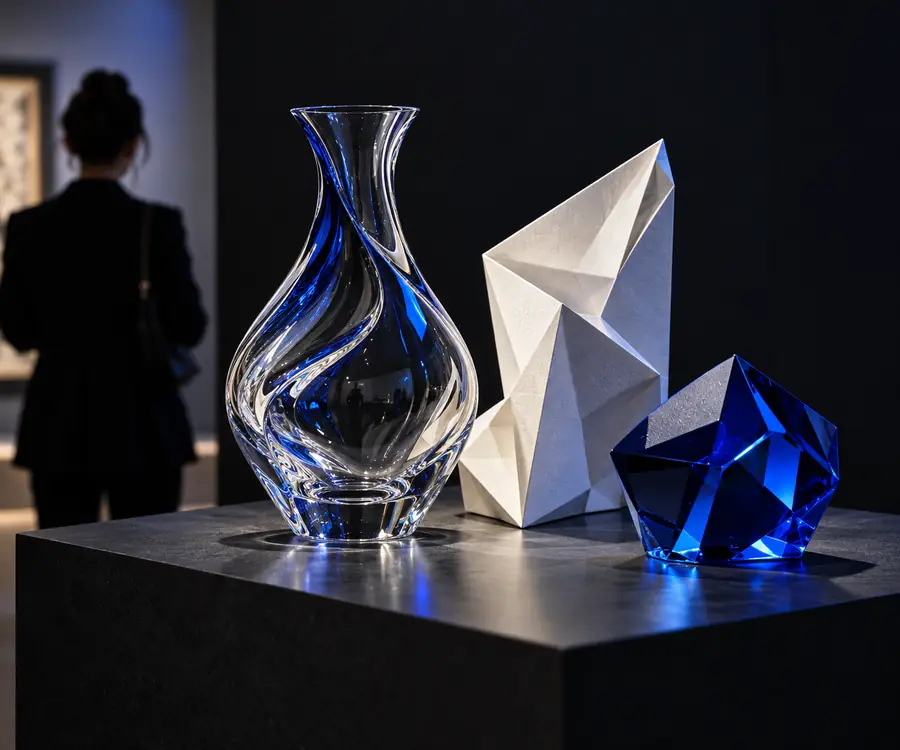
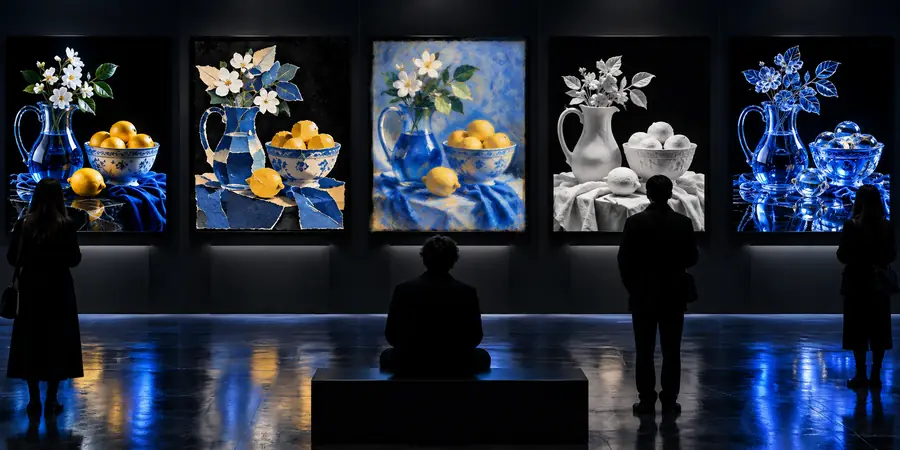 Input
Output
Input
Output
Drag the divider to inspect preserved structure and changed details.
Conversion trade-offs
Image-to-image work is a negotiation between fidelity and change. This side-by-side view helps you decide what to protect before writing the instruction.
Input image
Converted image
Input image
Directly visible in the source
Converted image
Usually retained when the instruction is specific
Input image
Fixed by the original framing
Converted image
Can shift if the requested scene is broad
Input image
Exact source colors
Converted image
May be reinterpreted by the new style
Input image
Includes original surface detail
Converted image
Can be softened, sharpened, or replaced
Input image
Captured in the source
Converted image
May change to match the requested mood
Input image
Present as captured
Converted image
Should be checked for distortion after conversion
Input image
Original environment
Converted image
Can be redesigned without changing the subject
The tool block
Choose the workflow by the kind of change you need: preserve the object, redirect the setting, or test a stronger visual variation.
Keep the product silhouette while testing new lighting, surfaces, and campaign settings.
More concept directions without rebuilding the product reference.
krea 2 image to-imageUse one approved composition as the base for several art-direction options.
A faster review set with the important framing decisions still visible.
krea 2 comfyui workflowStart from a massing or interior reference and test materials, weather, and atmosphere.
Useful visual alternatives while the underlying spatial idea remains recognizable.
krea 2 image to-imageRetain a character pose while exploring a different medium, palette, or environment.
Controlled style exploration instead of an unrelated redraw.
krea 2 comfyui workflowVerification examples
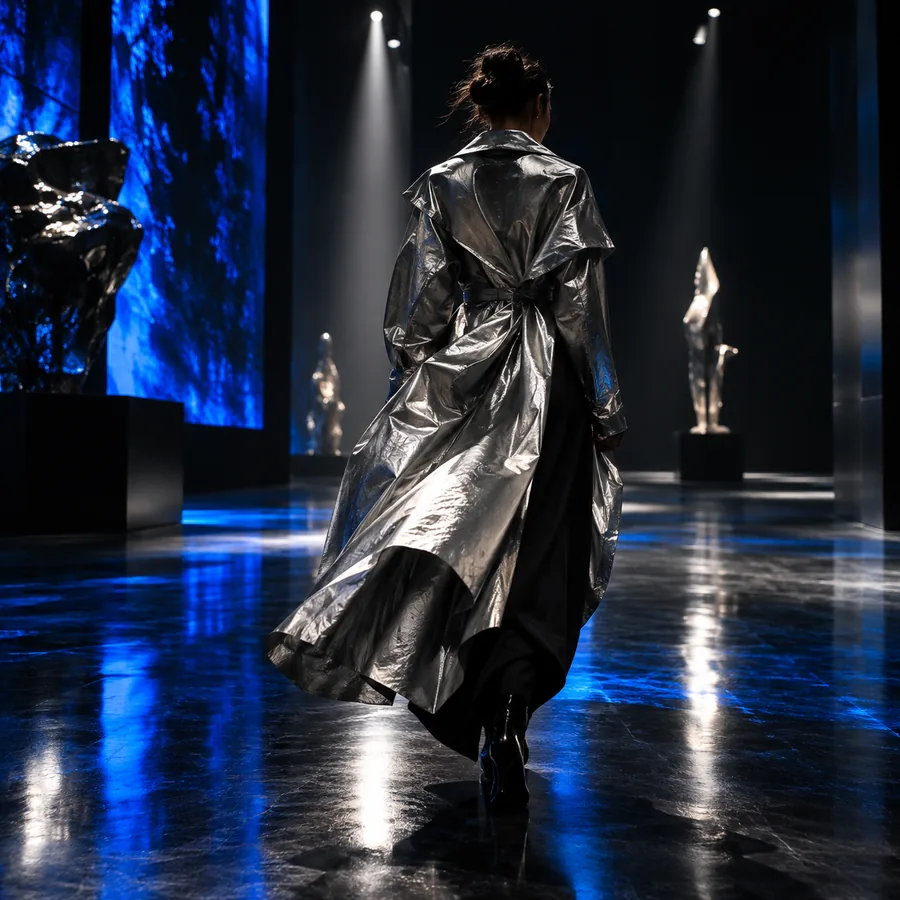
Inspect the result at the points most likely to drift: edges, lettering, hands, repeated patterns, and the relationship between the subject and its background.
 1
Structure
1
Structure
 2
Style
2
Style
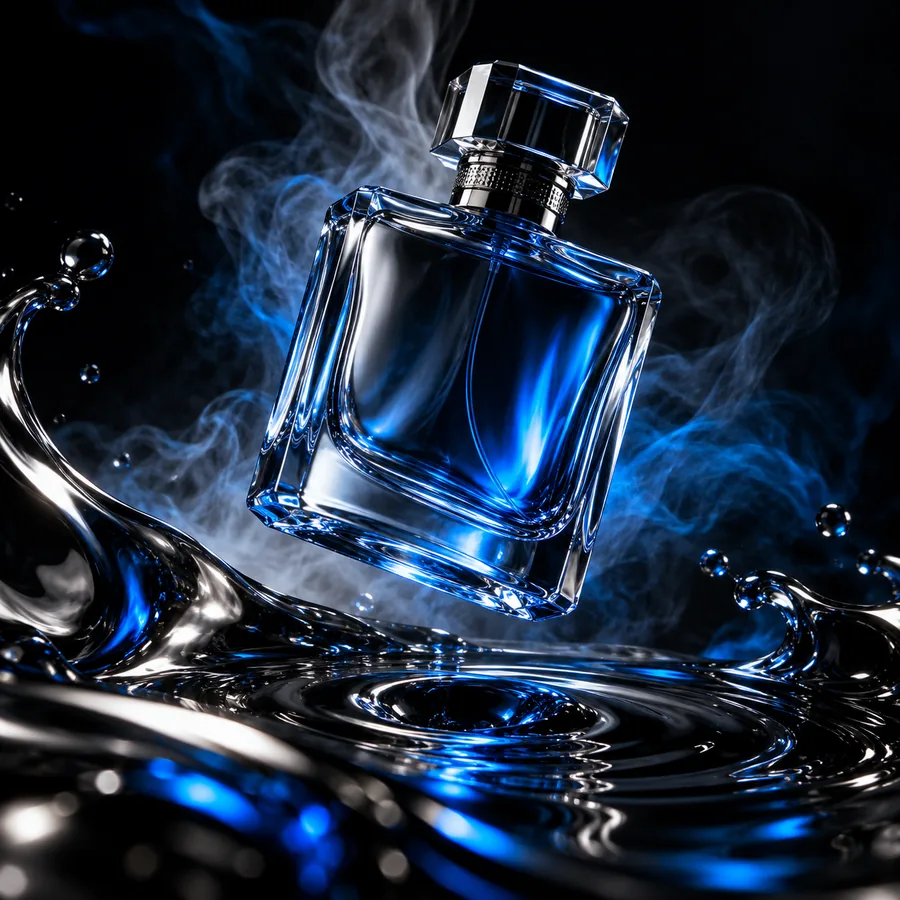 3
Detail
3
Detail
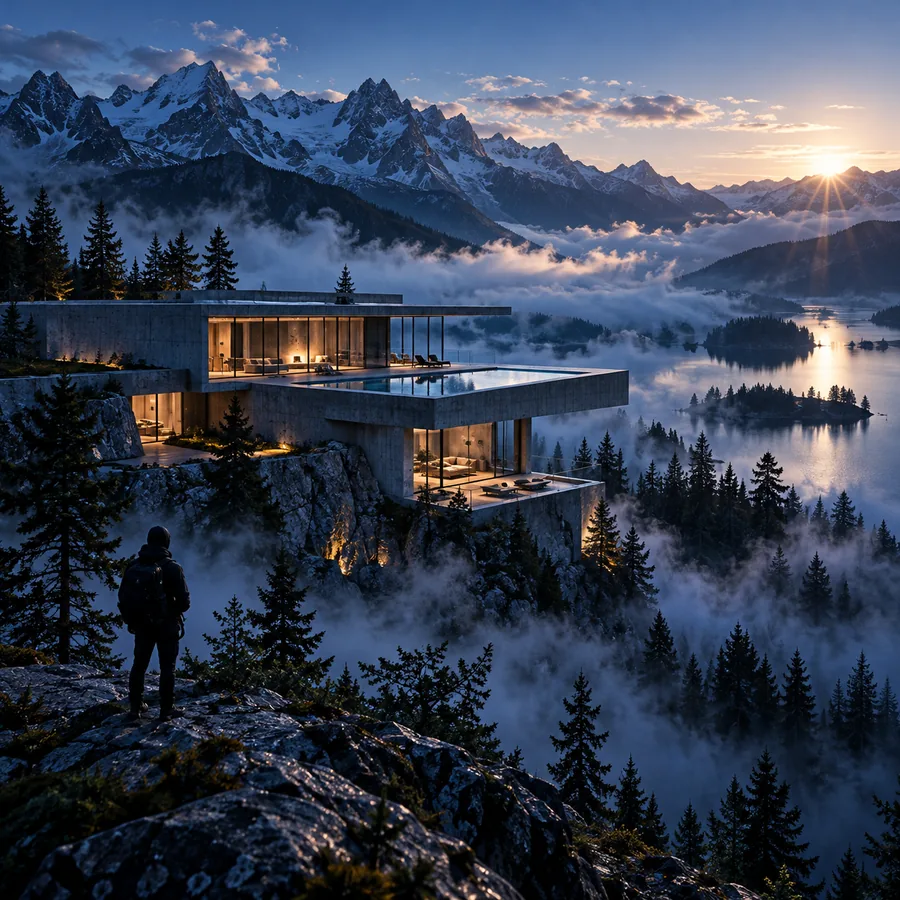 4
Setting
4
Setting
Quality check
A short review pass separates a convincing conversion from one that only looks right at a glance.
Identify the details that must survive: silhouette, pose, crop, logo placement, or architectural geometry.
Use the before-and-after view to inspect contours, joins, repeated patterns, and the boundary between foreground and background.
Zoom into text, fingers, reflections, and texture. If one area drifted, narrow the instruction and run a more focused variation.
Try the workflow
Start with an image whose composition already works, then describe only the changes you want to test. A focused instruction makes it easier to judge what the conversion preserved and what it replaced.
Convert an imageVariant FAQ
These answers cover the practical questions people ask when using an image-to-image workflow.
I2i means image-to-image: an existing image is used as the visual starting point for a new result. The instruction guides changes while the reference supplies structure, subject cues, or composition.
Name the parts that must stay, then describe the parts that should change. For example, specify the subject and framing first, followed by the requested setting, lighting, material, or visual style.
Use a clear reference and avoid asking for several unrelated transformations at once. Call out fixed elements such as silhouette, pose, crop, logo placement, or geometry, then compare those elements after conversion.
Inspect edges, small text, hands, repeated patterns, reflections, and the subject-background boundary. These areas often reveal changes that are easy to miss when viewing the full image.
Use a broader workflow when you want to explore several directions from one reference or need more control over the sequence of edits. A focused i2i pass is better when one clear transformation is the goal.